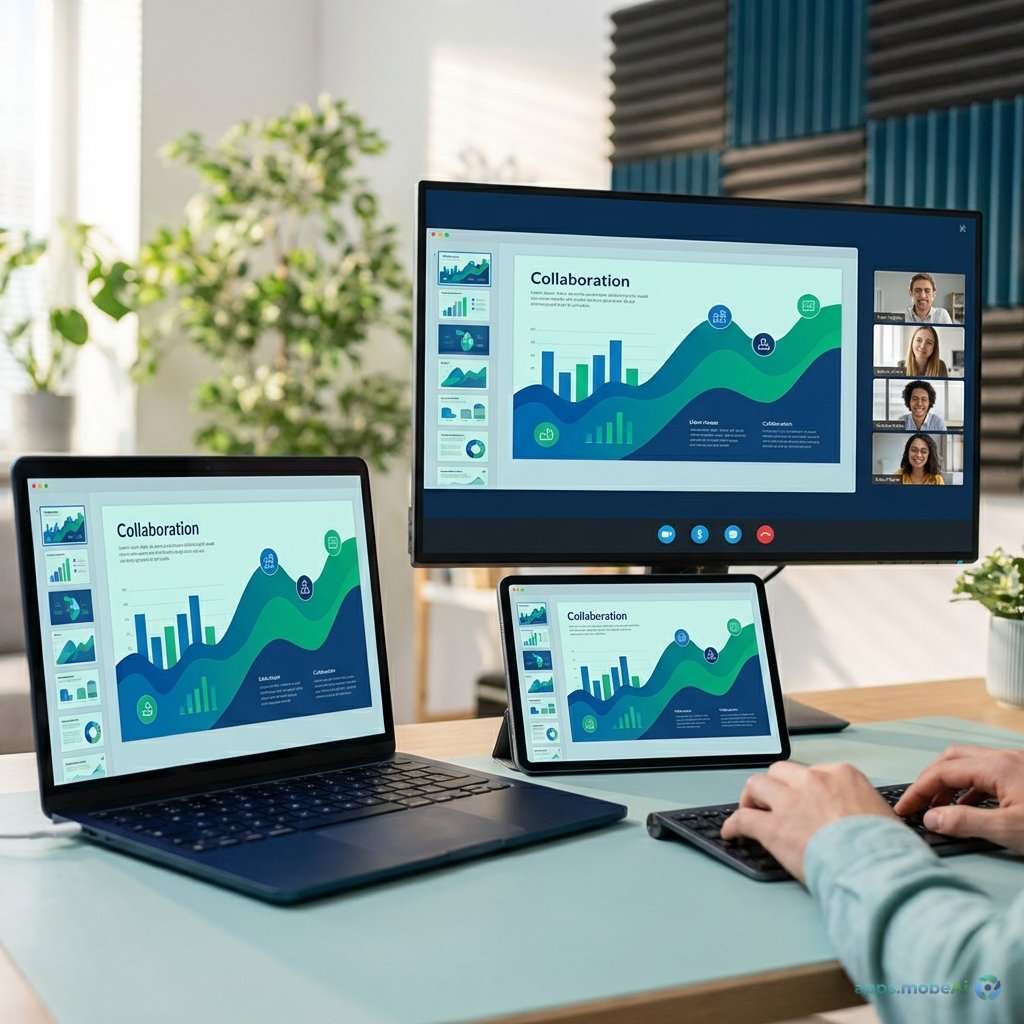
Screen sharing has become essential infrastructure for remote work, enabling visual collaboration that voice and chat
alone cannot achieve. Whether presenting to clients, debugging with teammates, training new employees, or providing
technical support, the ability to share what’s on your screen bridges the gap between in-person and distributed
work.
The screen sharing landscape in 2026 extends far beyond video conferencing add-ons. Dedicated screen sharing tools
offer optimized performance for specific use cases—presentations that impress, support sessions that solve problems,
recordings that document processes, and collaborative environments that enable real-time teamwork.
This comprehensive guide examines screen sharing tools for remote teams and presentations, comparing capabilities for
different use cases, performance quality, integration options, and pricing models. Whether you’re delivering
high-stakes presentations, providing remote technical support, or simply helping a colleague understand a complex
process, you’ll discover tools that match your screen sharing requirements.
I. Screen Sharing Use Cases
Different screen sharing scenarios demand different capabilities and optimizations.
Real-Time Presentations
Presenting to clients, stakeholders, or large audiences requires crystal-clear video quality, reliable performance,
and presenter tools that maintain professionalism. Lag, pixelation, or technical difficulties undermine
presentations regardless of content quality.
Technical Support
Remote support requires remote control capabilities that let support personnel operate client machines, annotation
tools that highlight issues, and session management for multiple concurrent interactions. Support-focused tools
address these specific requirements.
Collaborative Work Sessions
Working together on shared screens requires interactive capabilities—multiple cursors, drawing tools, and the ability
for participants to contribute rather than just observe. Real-time collaboration expects different features than
one-way presentations.
Training and Documentation
Recording screen content for training creates persistent assets that scale training efforts. Recording quality,
editing capabilities, and distribution options matter for documentation use cases.
II. Video Conferencing Platform Screen Sharing
Major video conferencing platforms include screen sharing as core functionality.
Zoom Screen Sharing
Zoom’s screen sharing provides reliable sharing with annotation, remote control, and multi-monitor support. Share
entire screens, specific windows, or portions of screens. Computer audio sharing ensures video or audio content
transmits properly.
Breakout room sharing enables presenters in small group discussions. Advanced sharing options include content from
second cameras, slides directly from PowerPoint, and whiteboard creation.
Microsoft Teams Screen Sharing
Teams screen sharing integrates with meeting and presentation workflows. Share desktop, windows, or PowerPoint
directly. PowerPoint Live provides enhanced presentation features—participant navigation, live feedback, and
presenter notes visible only to presenter.
Collaborative annotation enables participants to mark up shared content. System audio sharing ensures media plays for
all participants.
Google Meet Screen Sharing
Meet provides straightforward screen sharing—entire screen, window, or Chrome tab. Tab sharing optimizes for web
content with audio included. The simplicity matches Meet’s overall design philosophy.
Limitations of Integrated Sharing
While video conferencing platforms provide capable screen sharing, they optimize for meetings rather than screen
sharing specifically. Dedicated tools often provide better performance, additional features, and specialized
capabilities for specific use cases.
III. Loom: Asynchronous Video Communication
Loom pioneered asynchronous video messaging, enabling recorded screen shares that replace meetings and lengthy
emails.
Quick Recording
Loom’s primary use case is quick video messages—record screen with webcam bubble, narrate explanation, share link.
Recipients watch when convenient. This asynchronous approach replaces synchronous meetings for many communication
scenarios.
Recording starts in seconds through browser extension, desktop app, or mobile. The friction-free capture encourages
use where video previously felt too heavyweight.
Screen and Camera Options
Choose screen only, camera only, or screen with camera bubble. Flexible positioning places camera where appropriate.
Drawing tools highlight during recording. These options suit varied recording contexts.
Editing and Enhancement
Trim recordings to remove mistakes or pauses. Split and merge clips. Add calls-to-action with buttons. Transcription
provides searchable text and captions. Editing creates polished final products without complex video editing
software.
Sharing and Analytics
Videos share through simple links—no recipient accounts required. Viewing analytics show who watched, how much, and
when. These insights help senders understand communication effectiveness.
AI Features
Loom AI generates video summaries, creating written versions of recorded content. Automatic chapters segment longer
recordings. These features enhance accessibility and usability of recorded content.
Pricing
Starter plan is free with video limits. Business at $15/creator/month adds unlimited recording, custom branding, and
advanced analytics. Enterprise adds security and administration features.
Strengths and Limitations
Loom excels for asynchronous communication replacing meetings and complex emails. Quick capture and easy sharing
encourage adoption. Analytics provide valuable feedback. AI features enhance recorded content.
However, Loom doesn’t address real-time screen sharing needs. The platform requires recipients to watch recordings
rather than interact live. Pricing per creator can accumulate for larger teams.
IV. TeamViewer: Remote Access and Support
TeamViewer provides comprehensive remote access and support capabilities beyond basic screen sharing.
Remote Control
TeamViewer enables complete remote control of connected computers. Technicians operate client machines as if
physically present. This capability distinguishes support tools from presentation-focused screen sharing.
Cross-Platform Access
Access Windows from Mac, Mac from Windows, mobile from desktop—any platform combination works. This flexibility
serves support scenarios where client devices vary unpredictably.
Unattended Access
Configure computers for unattended access—connect without someone present to authorize. This capability enables IT
administration, remote work from personal devices, and always-available access to specific machines.
Session Management
Support teams manage multiple concurrent sessions. Session queuing and routing organize incoming support requests.
Integration with ticketing systems connects sessions to support workflows.
Session Recording
Record sessions for training, documentation, or compliance. Recordings capture everything that happened during remote
access for later review.
Pricing
TeamViewer Remote Access for personal use is free. Commercial use requires licensing starting around $50.90/month for
single-channel access. Enterprise pricing scales with usage and features.
Strengths and Limitations
TeamViewer provides robust remote access and control for support scenarios. Cross-platform flexibility serves diverse
client environments. Enterprise features address IT administration needs. Established reliability reflects decades
of development.
However, pricing complexity challenges small business adoption. The interface can feel dated compared to modern
alternatives. Personal use is free, but commercial detection sometimes flags legitimate personal use.
V. Specialized Presentation Tools
Some tools optimize specifically for presentation quality and professionalism.
Prezi Video
Prezi Video overlays presentation content around your webcam video, creating integrated visual communication. Rather
than switching between face and slides, both appear together—your image moves among content.
This approach suits presentations where personal connection matters alongside visual content. Viewers maintain eye
contact while seeing supporting material.
Mmhmm
Mmhmm similarly integrates presenter and content. Slides appear beside, behind, or around the presenter. Rooms
provide persistent virtual spaces for recurring presentation contexts. The tool creates broadcast-quality
presentation experience.
Screen Recording with Editing
For pre-recorded presentations, screen recording with editing tools like Camtasia or ScreenPal provide production
capabilities. Edit out mistakes, add captions, insert graphics, and create polished final products. These tools
trade real-time delivery for quality control.
VI. Collaborative Whiteboard Features
Some screens sharing scenarios benefit from collaborative drawing and annotation.
Miro Screen Sharing
Miro’s collaborative whiteboard includes screen sharing within whiteboard sessions. Share screens while whiteboard
remains accessible for annotation. This combination enables guided exploration with collaborative notation.
FigJam and Design Tool Sharing
Design tools like Figma enable real-time collaboration where multiple cursors interact with shared content. Screen
sharing here means collaborative editing rather than one-way viewing.
VII. Feature Comparison
Comparing screen sharing options across key dimensions helps match tools to needs.
Comparison Table
| Tool | Type | Price | Best For |
|---|---|---|---|
| Zoom | Meetings | Free-$20/mo | General Meetings |
| Loom | Async Video | Free-$15/mo | Video Messages |
| TeamViewer | Remote Access | Free-$51/mo | IT Support |
| Prezi Video | Presentation | Free-$19/mo | Sales Calls |
| Miro | Collaboration | Free-$10/mo | Visual Work |
Real-Time vs. Asynchronous
Loom serves asynchronous communication replacing meetings. All other options focus on real-time sharing. Choose based
on whether synchronous interaction benefits the communication or async viewing suffices.
Viewing vs. Control
Most screen sharing only enables viewing. TeamViewer and similar tools add remote control. Support scenarios
typically require control; presentations only need viewing.
VIII. Selecting Screen Sharing Tools
Match tool selection to primary use cases and organizational context.
For General Business
Video conferencing platform screen sharing (Zoom, Teams, Meet) handles most business needs. Adding Loom for async
communication and potentially Miro for collaboration completes coverage.
For IT Support
TeamViewer or alternatives like AnyDesk provide remote control capabilities essential for support. Session management
features serve support team workflows.
For Sales and Presentations
Prezi Video or Mmhmm enhance presentation impact for client-facing work. Professional appearance justifies investment
for sales contexts.
For Training and Documentation
Loom enables scalable training through recorded explanations. Screen recording tools with editing capabilities create
polished training materials.
IX. Best Practices for Screen Sharing
Effective screen sharing requires attention to practices beyond tool selection.
Preparation
Close unnecessary applications before sharing. Clear desktop of personal items. Prepare what you’ll share in advance.
Test audio sharing if playing media.
Performance Optimization
Share specific windows rather than entire screen when possible for better performance. Ensure adequate bandwidth.
Consider sharing quality settings based on content—high quality for detailed content, lower quality for stable
performance on limited connections.
Engagement During Sharing
Narrate what you’re showing rather than expecting viewers to follow silently. Use annotation tools to highlight
important areas. Check that participants can see clearly.
X. Conclusion
Screen sharing tools enable visual collaboration essential for remote and distributed work. Selection depends on
specific use cases—general meetings, technical support, sales presentations, training creation, or collaborative
work sessions each benefit from different capabilities.
For most organizations, video conferencing platform screen sharing (Zoom, Teams, or Meet) provides primary
capability. Adding Loom for asynchronous video replaces many meetings. Specialized tools like TeamViewer address
specific support or administration needs.
The tools continue evolving with improved quality, AI enhancement, and creative approaches like Prezi Video’s
integration of presenter and content. Evaluate regularly as capabilities advance.
Ultimately, effective screen sharing requires practice alongside tools. Clear communication, technical reliability,
and appropriate use of features matter more than specific tool selection. Choose tools that serve your use cases
reliably, then develop the practices that make shared screen sessions valuable for all participants.

.jpg)

.jpg)