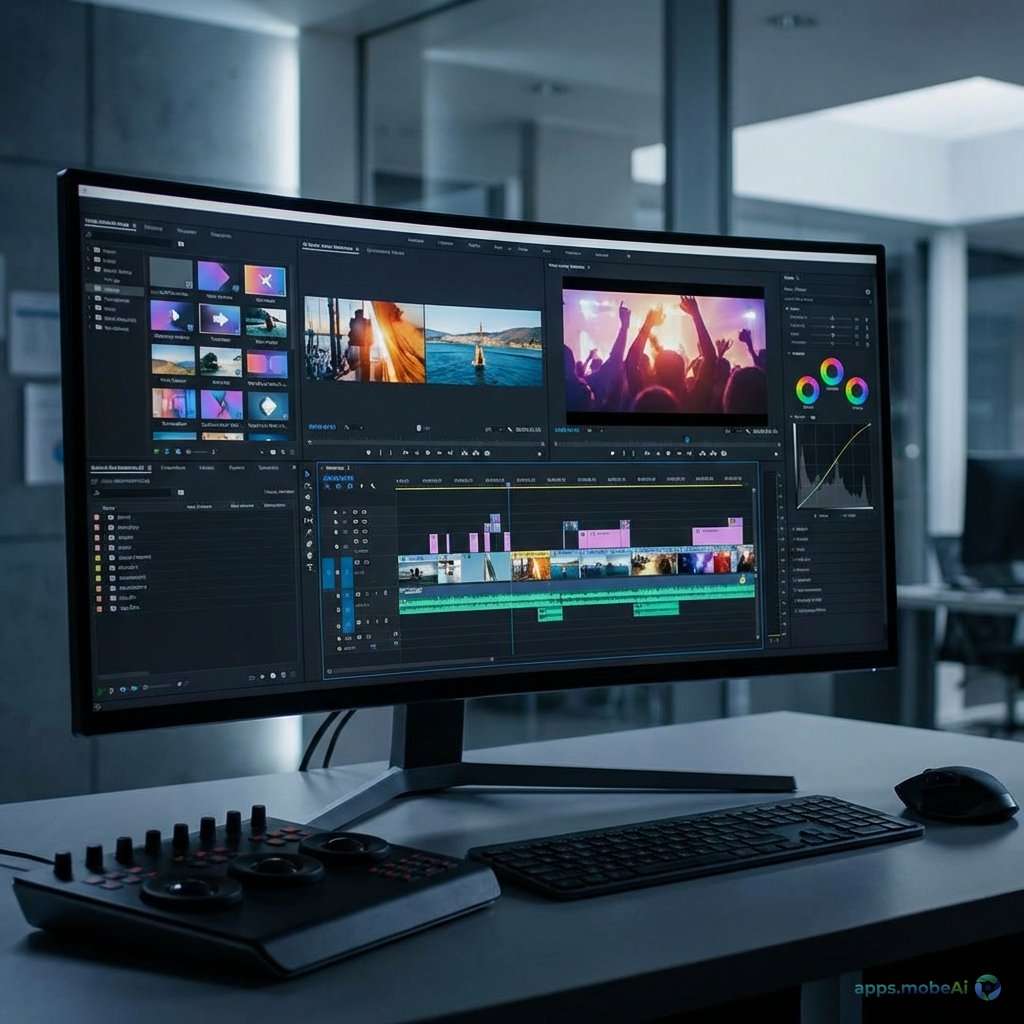
Video content creation has exploded across platforms—YouTube, TikTok, Instagram, corporate communications—creating
demand for video editing skills at every level. Whether you’re a beginner creating your first content or a
professional producing broadcast-quality work, the right editing software makes the difference between frustration
and efficient creation.
The video editing software landscape in 2026 offers options ranging from free applications with professional
capabilities to industry-standard tools used in Hollywood productions. Understanding these options helps match your
skill level, workflow needs, and budget to the right solution.
This comprehensive comparison examines leading video editing applications, analyzing their editing capabilities,
effects systems, audio tools, and pricing structures. From complete beginners to working professionals, you’ll
discover which software best supports your video creation goals.
I. Understanding Video Editing Requirements
Before comparing applications, understanding core editing needs provides evaluation context.
Timeline Editing
All video editing centers on timeline-based assembly—arranging clips, trimming, and sequencing to create narrative
flow. Timeline efficiency dramatically impacts editing speed. Support for multiple tracks, easy navigation, and
responsive playback matter for productive editing.
Transition and Effects
Beyond basic cuts, transitions between scenes and visual effects enhance productions. Built-in effects libraries,
third-party plugin support, and motion graphics capabilities vary substantially between applications.
Color Correction and Grading
Professional video requires color work—correcting exposure and white balance issues while establishing visual style
through grading. Color tools range from basic adjustments to full professional grading suites.
Audio Editing
Video audio requires attention—dialogue clarity, music integration, sound effects, and noise reduction. Integrated
audio tools or workflow connections to dedicated audio applications affect production quality.
Export and Delivery
Finished videos must export in appropriate formats for various platforms—web, broadcast, social media. Preset export
options simplify delivery while custom settings address specific requirements.
II. DaVinci Resolve: The Free Professional
DaVinci Resolve from Blackmagic Design has disrupted video editing by providing genuinely professional tools in its
free version, challenging the assumption that capability requires premium pricing.
Free Version Capabilities
DaVinci Resolve’s free version includes professional editing, industry-leading color grading, visual effects, and
audio post-production in one application. Unlike typical “free” versions with severe limitations, Resolve provides
comprehensive professional capability at no cost.
The free version handles 4K editing, supports most formats without transcoding, and includes the same core editing
and color tools as the paid version. Most users never need to upgrade.
Color Grading Excellence
DaVinci Resolve built its reputation on color grading—the Color page provides tools used in feature film production.
Node-based grading, advanced color wheels, curve adjustments, and secondary correction create looks impossible in
basic editors. This color capability alone justifies Resolve for serious creators.
Fusion Visual Effects
The Fusion page provides node-based compositing and visual effects—3D tools, green screen keying, particle systems,
and motion tracking. While complex for beginners, Fusion enables effects rivaling dedicated compositing
applications.
Fairlight Audio
The Fairlight page provides professional audio post-production—multitrack mixing, EQ, dynamics, and spatial audio
support. This integrated audio capability eliminates need for separate audio applications in many workflows.
Studio Version Additions
DaVinci Resolve Studio ($295 one-time purchase) adds GPU-accelerated processing, HDR tools, AI-powered features like
speed warp and face refinement, advanced noise reduction, and frame rate conversion. Professional facilities may
need these features; most creators work effectively with the free version.
Learning Curve Consideration
Resolve’s professional depth creates steeper learning curve than simpler editors. The multiple “pages” for different
functions require understanding workflow structure. Investment in learning pays off in capability, but beginners may
find initial experience overwhelming.
Strengths and Limitations
DaVinci Resolve provides unmatched value—professional tools genuinely free. Color grading capabilities lead the
industry. The integrated workflow combining editing, color, VFX, and audio streamlines production.
However, the learning curve is substantial. System requirements are demanding—capable GPU is effectively required.
Interface complexity may frustrate users wanting simple editing.
III. Final Cut Pro: The Mac Professional
Apple’s Final Cut Pro provides professional video editing with Mac-optimized performance and integration unavailable
from cross-platform applications.
Magnetic Timeline
Final Cut Pro’s magnetic timeline automatically manages clip collision, maintaining edit integrity through changes.
This approach divides opinion—some find it intuitive, others prefer traditional track-based editing. The system
suits fast editorial work once mastered.
Apple Ecosystem Integration
Final Cut leverages Apple technologies—Metal graphics acceleration, optimized Apple Silicon performance, and
integration with Photos, Music, and other Apple applications. Mac creators benefit from this optimization
unavailable elsewhere.
Organization Tools
Keyword tagging, smart collections, and roles-based organization manage complex projects. Multicam editing assembles
multi-camera shoots efficiently. The organizational tools suit large projects with extensive source material.
Color and Effects
Built-in color correction provides capable grading with color wheels, curves, and color board adjustments. Motion
templates create animated titles and graphics. While not matching Resolve’s color depth, the tools handle most
production needs.
Pricing Structure
Final Cut Pro costs $299.99 as a one-time Mac App Store purchase—no subscription. Free updates have historically
continued for major versions. The perpetual license provides long-term value versus subscription alternatives.
Strengths and Limitations
Final Cut Pro delivers excellent performance on Mac hardware with intuitive workflow for many editors. One-time
pricing provides clear value. Integration with Mac ecosystem benefits Apple-centric creators.
However, Mac exclusivity eliminates Windows users. The magnetic timeline requires adjustment from track-based
editors. Color tools trail DaVinci Resolve for serious grading work.
IV. Adobe Premiere Pro: The Industry Standard
Adobe Premiere Pro maintains its position as the industry standard for professional video editing, particularly in
broadcast and commercial production environments.
Industry Adoption
Premiere Pro’s widespread adoption means team collaboration, shared projects, and contractor compatibility often
require Premiere. The standard status creates practical reasons for adoption beyond feature comparison.
Creative Cloud Integration
Tight integration with After Effects, Photoshop, Audition, and other Creative Cloud applications creates seamless
workflows. Dynamic Link enables After Effects compositions within Premiere without rendering. This integration suits
productions using multiple Adobe tools.
Editing Capabilities
Traditional timeline editing with multiple video and audio tracks provides familiar workflow. Advanced trimming,
multicam editing, and proxy workflow support professional production needs. Regular updates add features responding
to editor feedback.
AI-Powered Features
Adobe Sensei AI powers auto-transcription for searchable speech, auto-reframe for different aspect ratios, and
content-aware fill for video. These AI features accelerate tasks that would otherwise require significant manual
effort.
Pricing Structure
Premiere Pro requires Creative Cloud subscription—approximately $22.99 monthly for single app or included in complete
Creative Cloud at $59.99 monthly. Subscription model provides ongoing updates but perpetual cost.
Strengths and Limitations
Premiere Pro provides professional capability with industry-standard status ensuring compatibility. Creative Cloud
integration benefits Adobe-centric workflows. Regular updates maintain current feature development.
However, subscription pricing creates ongoing cost that exceeds one-time alternatives over time. Interface stability
has drawn criticism in some releases. System requirements are demanding for complex projects.
V. Filmora: The Beginner-Friendly Editor
Wondershare Filmora positions itself as accessible video editing for beginners and content creators wanting results
without professional complexity.
Simplified Interface
Filmora’s interface emphasizes accessibility—clearly labeled tools, visual previews, and guided workflows suit users
intimidated by professional applications. The reduced complexity enables faster initial productivity at the cost of
advanced control.
Built-in Resources
Extensive libraries of titles, transitions, effects, and music provide starting points without external sourcing.
Effect presets create polished looks with minimal adjustment. These resources accelerate creation for standard
content types.
AI Features
Filmora has added AI-powered features: auto-beat sync for music videos, AI portrait effects, speech-to-text captions,
and smart cutout for background removal. These features simplify tasks that would require significant skill in
professional tools.
Pricing Structure
Filmora offers annual subscription around $49.99 or perpetual license around $79.99 for specific versions.
Cross-platform availability covers Windows and Mac. Mobile versions extend to iOS and Android.
Strengths and Limitations
Filmora excels at accessibility—genuinely easier than professional alternatives. Built-in resources accelerate
content creation. Reasonable pricing suits hobbyists and content creators.
However, professional depth is limited for advanced needs. Some features feel gimmicky compared to professional
tools. Watermarks on free version require upgrade for clean exports.
VI. CapCut: The Social Media Editor
CapCut, developed by ByteDance (TikTok’s parent company), has become the default editor for social media content
creators through its free availability and trend-focused features.
Social Media Focus
CapCut optimizes for social media content—vertical video support, one-tap effects matching platform trends, and
export presets for major platforms. The approach prioritizes social content creation over traditional video
production.
Free Availability
CapCut provides full functionality free on mobile with ads. Desktop version extends capability for more complex
editing. The free model has driven massive adoption among content creators.
Trending Effects
CapCut rapidly adds effects matching current social media trends—specific filters, transitions, and audio effects
popular on TikTok and Instagram. This trend responsiveness keeps creator content current.
AI Features
Auto-captioning, background removal, and AI-generated effects simplify common tasks. These features suit the
fast-turnaround expectations of social content creation.
Strengths and Limitations
CapCut dominates social media editing through free access, trend alignment, and mobile capability. Content creators
producing primarily for social platforms find it sufficient.
However, professional capability is limited. Privacy concerns exist given ByteDance ownership. Desktop version trails
dedicated editing applications. Focus on trends may feel superficial for serious work.
VII. Feature Comparison
| Feature | DaVinci Resolve | Final Cut Pro | Premiere Pro | Filmora |
|---|---|---|---|---|
| Price | Free/$295 | $299.99 | ~$23/mo | ~$80 |
| Color Grading | Excellent | Good | Good | Basic |
| Learning Curve | Steep | Moderate | Moderate | Easy |
| Platform | Win/Mac/Linux | Mac only | Win/Mac | Win/Mac |
| Best For | Serious creators | Mac pros | Industry work | Beginners |
Best for Beginners
Filmora provides the gentlest introduction to video editing. Those wanting quick results without steep learning
curves should start here.
Best Value for Professionals
DaVinci Resolve’s free version provides professional tools at no cost—unmatched value for capable editing, color,
effects, and audio.
Best for Mac Users
Final Cut Pro’s Mac optimization and one-time pricing provide excellent value for Apple-exclusive creators.
Best for Industry Compatibility
Premiere Pro’s standard status makes it practical for those working in collaborative professional environments.
VIII. Choosing the Right Tool
Matching editor to needs ensures productive use.
Assess Skill Level Honestly
Beginners should start with accessible tools rather than fighting professional complexity. As skills develop,
transitioning to more capable applications makes sense. Don’t over-engineer initial choices.
Consider Content Type
Social media content creation suits different tools than documentary or commercial production. Match tool to typical
output rather than aspirational projects.
Evaluate System Capabilities
Video editing demands capable hardware—fast storage, adequate RAM, modern GPU. Verify system meets requirements for
chosen application. DaVinci Resolve particularly benefits from GPU capability.
Trial Before Committing
Most applications offer free trials or versions. Edit actual projects during evaluation. Real workflow testing
reveals fit better than feature comparisons.
IX. Learning Resources
Effective learning accelerates productivity regardless of chosen tool.
Official Training
Blackmagic provides free DaVinci Resolve training materials and certification. Apple offers Final Cut Pro training
through authorized centers. Adobe provides tutorials through Creative Cloud. Official resources ensure accuracy.
YouTube Education
Extensive YouTube tutorials cover every major application. Channels dedicated to specific software provide deep
learning resources. Free access makes YouTube the primary learning path for many.
Structured Courses
Platforms like Skillshare, LinkedIn Learning, and MasterClass provide structured video editing courses. The organized
progression suits those wanting comprehensive understanding rather than topic-specific tutorials.
X. Conclusion
Video editing software in 2026 offers capable options for every skill level and budget. DaVinci Resolve provides
professional tools free—an unprecedented value for serious creators. Final Cut Pro excels for Mac users wanting
one-time pricing. Premiere Pro maintains industry standard status for collaborative professional work. Filmora suits
beginners wanting accessible creation.
The best choice depends on skill level, platform, content type, and budget. Start with appropriate complexity—there’s
no benefit to fighting professional tools when simpler options would serve initial needs better. As skills develop,
more capable applications become worthwhile.
Video editing skill matters more than software choice. Professional results come from understanding editing
principles, developing aesthetic sense, and practicing craft. The right tool removes friction from the creative
process, but the creativity itself comes from the editor, not the software.